
Resources
Learn what Viora can help you do by voice on Mac.
Viora is a Mac voice AI assistant for turning spoken thoughts into writing, edits, answers, and small actions inside your daily workspace. Use this page when you are new to Viora or already using Viora and want a better path.
Pick the Viora resource that matches where you are
Start with the product behavior you want to understand, then move into examples, release notes, or comparisons only when they help.
- Explore dictation
Dictate into your Mac workflow
Learn how Viora turns natural speech into usable text inside the app you are already using.
- Explore voice agent
Ask Viora to write or edit
Use Voice Agent when you want help shaping a reply, rewriting a rough note, answering a question, or starting an action.
- See use cases
Everyday use cases
See how Viora fits email, docs, tickets, planning, research, and daily writing on Mac.
- Read the guide
Mac voice basics
Understand built-in Mac dictation first, then see where a dedicated assistant like Viora becomes useful.
- Learn the difference
Voice AI vs dictation
See why Viora is more than speech-to-text: it can help with writing, editing, asking, and small workflows.
- View changelog
What changed recently
Follow new fixes and improvements across the Viora web and Mac experience.
Browse every Viora feature guide
Use these pages when you want the exact product behavior behind a workflow, from first draft to rewrite, question, agent task, and remembered guidance.
- Open dictation
Voice dictation
Speak naturally and place cleaned-up text into the Mac app where your cursor already is.
- Open editing
Selected-text editing
Select existing text, say how it should change, and review a rewrite without moving work into a separate chat.
- Open Ask in Place
Ask in Place
Ask questions about selected or nearby context while staying in the app where you are reading or writing.
- Open Voice Agent
Voice Agent
Use voice for writing, edits, contextual answers, and supported small agent tasks on macOS.
- Open Memory
Memory
Teach Viora controlled terms, preferences, boundaries, and workflow guidance for repeated Mac voice work.
Choose the next page by what you need to decide
After you understand the feature, move to examples if you need workflow fit, or pricing if you are checking plan boundaries.
Understand the product before you install another tool
If you are new to Viora, use these resources to learn what the Mac app does and where it fits in everyday work.
- 1Turn speech into usable textStart with dictation to see how Viora helps you speak naturally and produce text you can use right away.
- 2Move from text input to voice helpLearn how Voice Agent can help you write, edit, ask, and do more than basic transcription.
- 3Try one real workflowPick a task you already do on Mac, such as an email reply or document update, and use Viora there first.
Use Viora for more than quick notes
If you are already using Viora, this page points you toward the workflows that make the Mac app more useful day to day.
Write where you work
Use Viora in the Mac apps where your writing already happens instead of moving every thought into a separate editor.
Ask for edits in plain language
Tell Viora what you want changed, shortened, expanded, translated, or clarified, then keep working from the result.
Keep up with improvements
Use release notes to see what has changed before assuming an old workflow still works the same way.
Who these resources are written for
The page is for people who want to understand and use Viora in normal Mac work, not just compare AI tools from a distance.
- People who type all dayMac users who live in Mail, Slack, docs, browsers, and code editors and want voice to reduce repeated typing.
- Writers and operatorsPeople turning rough spoken thoughts into polished replies, documentation, updates, tickets, and planning notes.
- People who want voice to do moreUsers who want to ask, revise, summarize, or start small tasks without turning every step into manual typing.
Still comparing tools?
When you need to choose between Viora and another voice tool, these guides explain the practical differences without making comparison the whole point of the page.
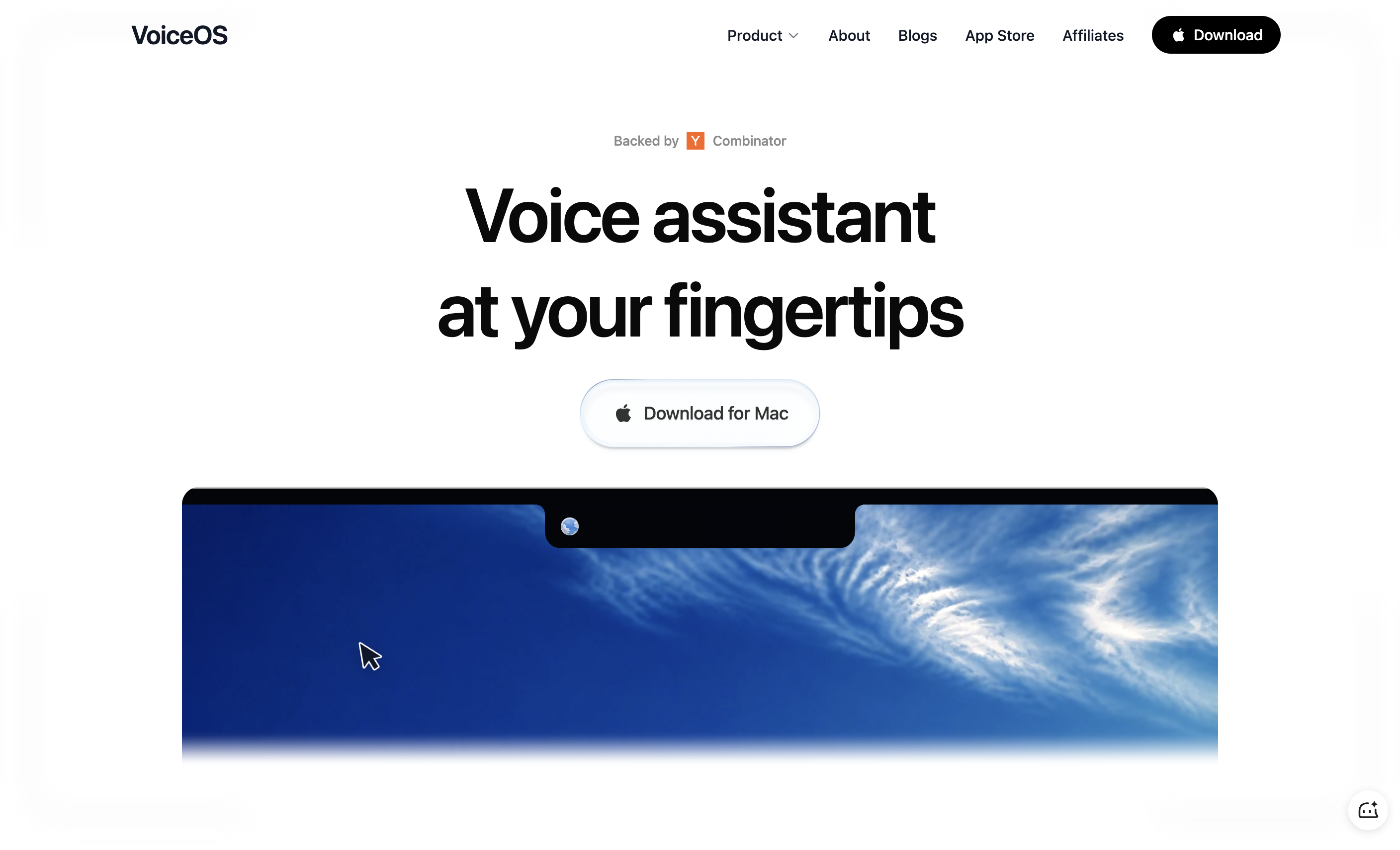
Comparison guide
Viora vs VoiceOS: Mac Voice Agent Comparison
Compare Viora and VoiceOS for Mac voice work: memory, platform, dictation, agent actions, and current public pricing. Checked September 3, 2026.
Updated 2026/09/03Read comparison
Comparison guide
Superwhisper Alternative for Mac: Switch to Viora
Looking for a Superwhisper alternative on Mac? See how Viora compares on dictation, pricing, privacy, and voice AI workflows, plus how to switch.
Updated 2026/06/24Read comparison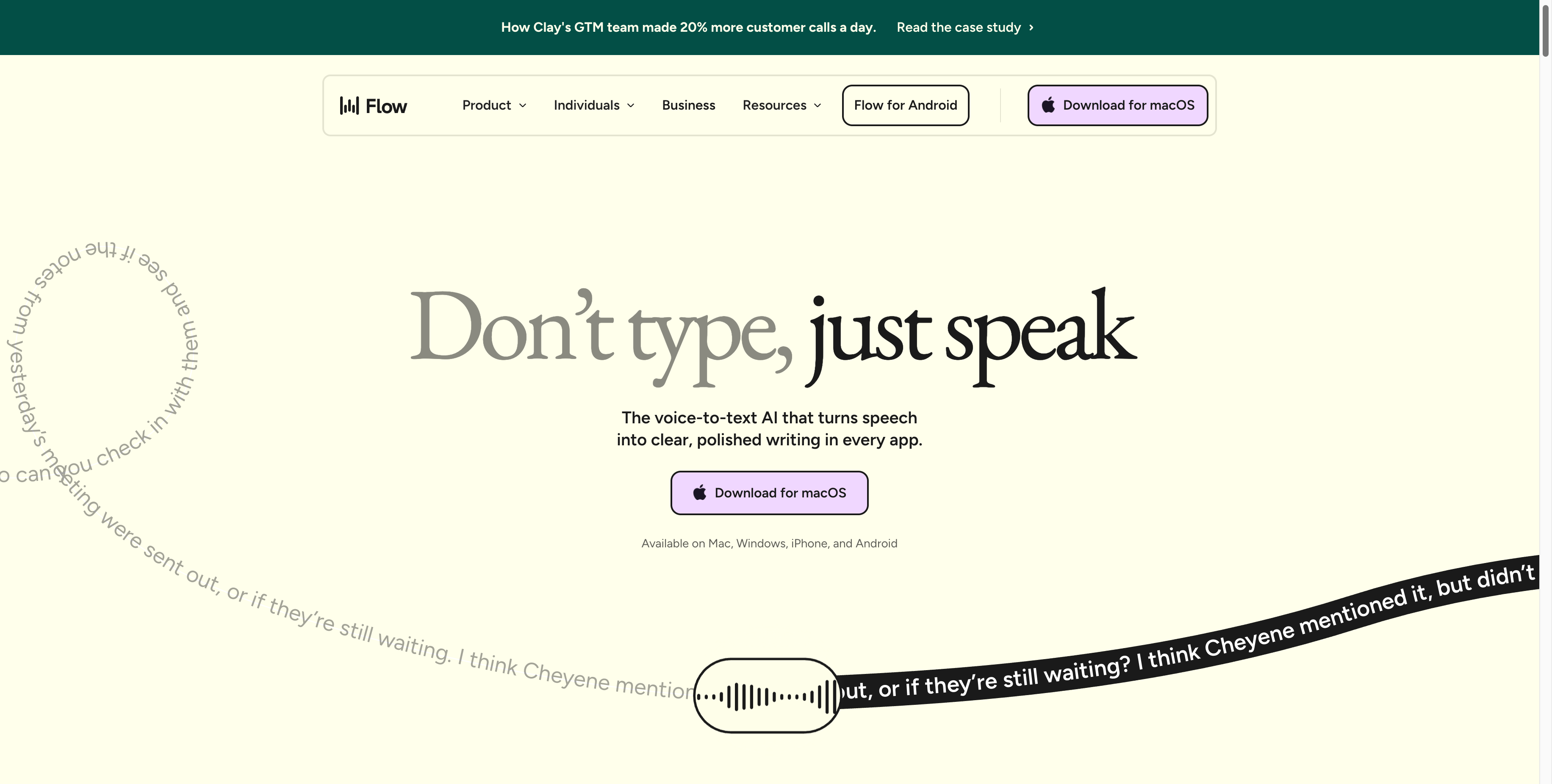
Comparison guide
Wispr Flow Alternative for Mac: Switch to Viora
Looking for a Wispr Flow alternative on Mac? See how Viora compares on dictation, pricing, privacy, languages, and how to switch from Wispr Flow.
Updated 2026/06/24Read comparison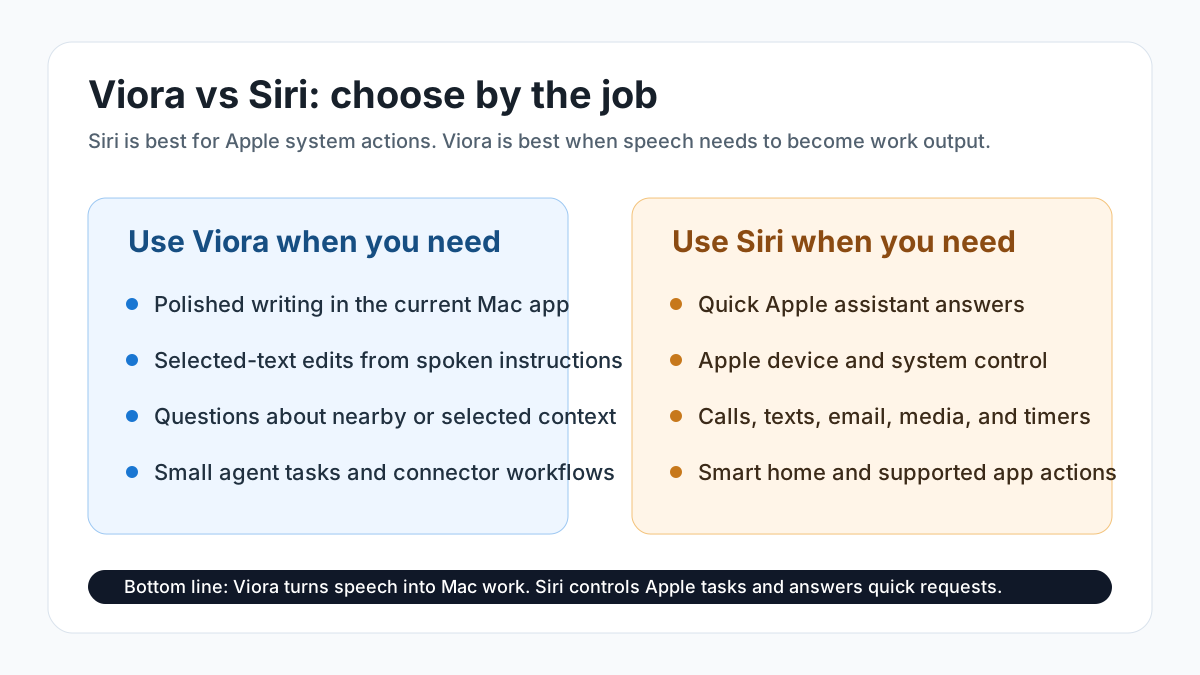
Comparison guide
Viora vs Siri: Mac Voice AI and Apple Dictation
Compare Viora and Siri for Mac voice AI, Apple Dictation, Writing Tools, privacy, platform availability, text editing, and best-fit workflows.
Updated 2026/06/16Read comparison
Resource FAQ
A few quick answers
Use these notes to choose a starting point without reading every page first.
Where should I start if I am new to Viora?
Start with the dictation feature if you want faster text input. Start with Voice Agent if you want Viora to help write, edit, answer, or act from a spoken instruction.
Where should I go if I already use Viora?
Use the feature and use-case pages to find workflows you may not have tried yet, then check release notes when you want to see what changed recently.
Is Viora only for dictation?
No. Dictation is the fastest starting point, but Viora is also built for voice-led writing, editing, questions, and small actions on Mac.
When should I read comparison guides?
Read them when you are choosing between Viora and another voice tool. They sit after the product resources because most visitors first need to understand what Viora does.
Say something.See what happens.
Let voice become the most natural connection between you and your Mac.